Guide
How to Use FootParty
For the host
Creating & Running a Party
Step 1: Create a Room
On the home page, make sure the Create tab is selected. Enter your name and tap Start Party. You'll get a unique 6-character room code you can share with friends.Step 2: Pick a Match
In the Host Panel, pick a match from today's fixtures. If the match is already live, the room will jump straight to the current phase. You can also create a custom match for friendlies or matches not listed.Step 3: Share the Room Code
Copy or share the invite link from the Host Panel. Anyone with the code can join — no account needed. Players just enter the code and a nickname.Step 4: Manage the Match Phases
If your match is linked to ESPN, phases advance automatically. For custom matches, use the phase controls to move through: Pre-Match → First Half → Half Time → Second Half → Full Time. For custom matches, you can also manually update the score.Step 5: Log Match Events
During the first and second half, use the Event Logger to record goals, cards, substitutions, and other key moments. These appear in the live feed for all players.Step 6: Activate Bingo Tiles
The Host Panel shows a Bingo Master Board with all possible tiles. As things happen in the match (e.g. "Corner kick in first 10 min"), tap the tile to mark it. All player cards update in real time.Step 7: Drop Live Polls
During the first or second half, use the Live Poll creator to ask quick questions like "Will there be a goal before 60'?" Players vote in real time. Once the outcome is known, tap the correct answer to resolve the poll and award points.Step 8: Set Up the Half-Time Quiz
You can create the quiz at any point during the match — you don't have to wait until half time. The quiz becomes playable for your players once half time begins.Step 9: End the Room
At full time, scores are tallied and the winner is revealed on the final leaderboard. You can end the room from the Host Panel when you're done.
For players
Joining & Playing
Step 1: Join a Room
On the home page, switch to the Join tab. Enter the 6-character room code from your host and pick a nickname. If you received an invite link, the code will already be filled in.Step 2: Submit Your Prediction
Before kick-off, predict the final score. You can also pick the first goalscorer and Man of the Match for bragging rights. Predictions lock once the match starts.Step 3: Play Bingo
Once the match kicks off, you get a unique 5x5 bingo card with football-themed tiles. The host marks tiles as events happen and your card updates live. Complete a row, column, or diagonal to score points.Step 4: Vote on Live Polls
During the match, the host may drop quick polls — check the Polls tab in the bottom menu. Vote on each question for a chance to earn 5 points if you get it right.Step 5: Take the Half-Time Quiz
At half time a football quiz appears in the bottom menu. Answer the questions to earn bonus points.Step 6: Chat & React
The chat tab is always available. Send messages, react to goals, and talk with everyone in the room in real time.Step 7: Check the Leaderboard
The leaderboard tracks everyone's total score across predictions, bingo, polls, and quiz. At full time, the winner is crowned with a full score breakdown.
Scoring Breakdown
Points are earned across three activities:
Score Predictions
Bingo
Live Polls
Half-Time Quiz
Feature Overview
Score Predictions
Lock in your predicted scoreline before kick-off
Football Bingo
Unique 5x5 card per player with live tile updates
Live Polls
Mid-match questions from the host — vote right for bonus points
Half-Time Quiz
Football trivia to keep the energy up at the break
Live Chat
Real-time messaging with everyone in the room
Match Events
Live feed of goals, cards, and substitutions
Leaderboard
Running total with per-category score breakdown
FAQ
- Do I need to create an account?
- No. Just enter a nickname and you're in. There's no sign-up, no email, and no password required.
- How many people can join a room?
- Up to 50 players can join a single room. FootParty works best with groups of 2 to 30.
- Can I join a match that's already started?
- Yes. If the match is live, you'll jump straight into the current phase and receive your bingo card immediately. You won't be able to submit a prediction since those lock at kick-off.
- What if the match I want isn't listed?
- You can create a custom match by typing in the team names manually. For custom matches, the host controls the score and phase progression.
- Do the phases update automatically?
- For ESPN-listed matches, yes — kick-off, half time, and full time are synced automatically. For custom matches, the host advances phases manually.
- How does bingo work?
- Each player gets a unique 5x5 card with football-themed tiles (e.g. "Corner in first 10 min", "Yellow card"). The host watches the match and taps tiles on the master board as they happen. Your card updates instantly. First to complete a line wins 25 points.
- What are Live Polls?
- During the first or second half, the host can drop quick questions like "Next goal — home or away?" You vote from the Polls tab and earn 5 points if you pick the right answer. The host reveals the correct answer once the outcome is known.
- Can the host play too?
- The host manages the room (picking the match, logging events, activating bingo tiles, and creating the quiz) but doesn't participate as a player in predictions, bingo, or the quiz.
- Is FootParty free?
- Completely free. No ads, no premium tiers. If you enjoy it, you can buy us a coffee from the home page.
- Does it work on mobile?
- Yes. FootParty is built mobile-first — it works in any modern browser on phones, tablets, and desktops.
- What happens when the match ends?
- At full time, prediction scores are calculated, the final leaderboard is revealed, and the winner takes the top of the podium with a full points breakdown.
Install
Install FootParty on iPhone
FootParty works as a full-screen app on your iPhone — no App Store download needed. Just add it to your home screen from Safari.
Step 1: Open in Safari & Tap the Menu
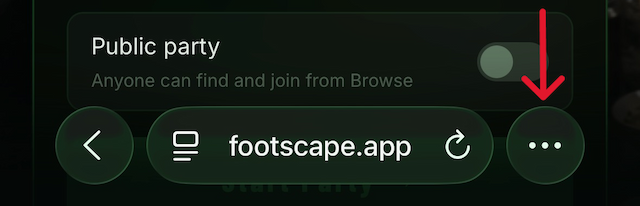
Go to footscape.app/footparty in Safari and tap the three dots (•••) in the address bar. This must be done in Safari — it won't work from Chrome or other browsers on iOS.
Step 2: Tap Share
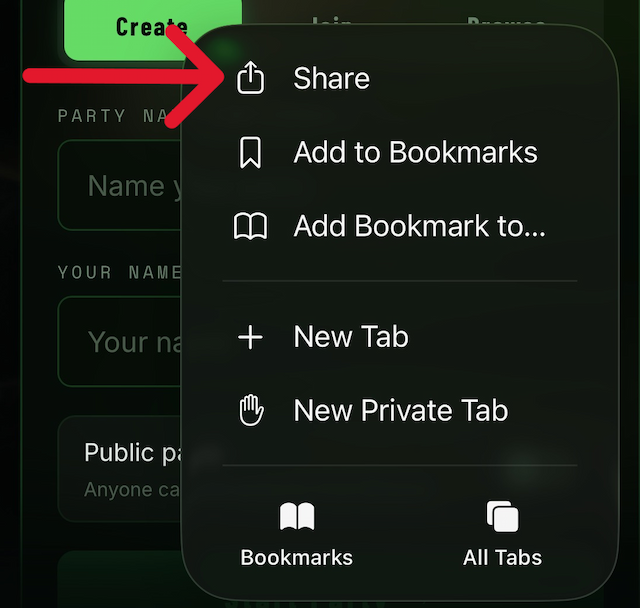
In the menu that appears, tap Share.
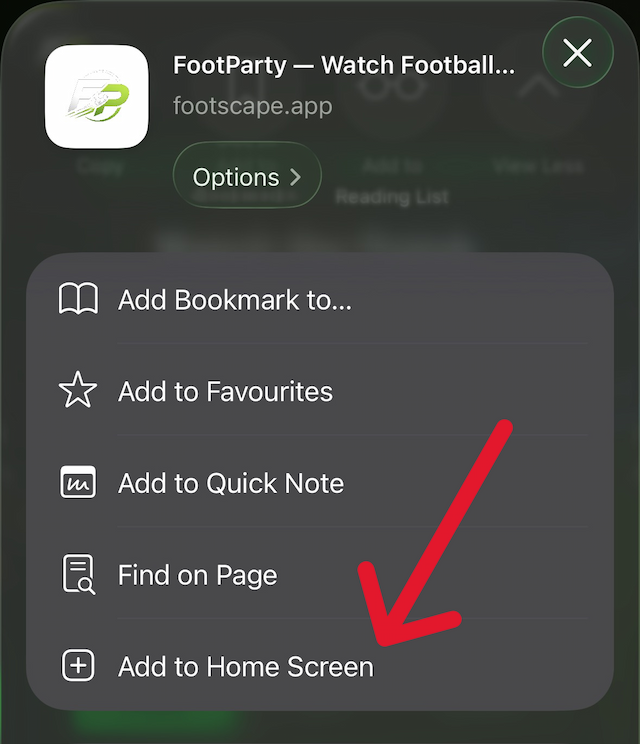
Step 3: Add to Home Screen
Scroll down or tap View More in the share sheet, then select Add to Home Screen. Tap Add to confirm. FootParty will appear on your home screen and open full-screen like a native app — with push notifications and everything.